
Airdrop Transfer
- Format
- Static
- Category
- Native & UI Mimicry
- Stage
- TOF
- Requires
- Product photo
What is it
An ad built to look like an incoming AirDrop request: the white iOS share card, the preview thumbnail, Decline and Accept. It works because the brain reads a system alert before it decides whether something is an ad, and by then it's already read your message.
What makes it work
Get the UI exactly right
Real card shape, real corner radius, system font, actual Decline/Accept buttons. Almost-right is worse than not trying — it reads as a cheap knockoff and triggers suspicion instead of the reflex.
Nothing branded on the card
No logo, no brand colour, no marketing font inside the box. The card is the phone's, not yours. Branding it turns a notification back into a banner.
Put a real moment behind it
A shower, a desk, a blurred home screen, a bathroom mirror. The background is where the problem lives, and it's what makes the alert feel like it arrived rather than got designed.
Write it like a person sending a file
"Sarah wants to share 1 item." "Take your Lion's Mane." Short, present tense, personal. A slogan inside the card breaks the disguise instantly.
One card, centred, middle third
Two notifications or an off-centre card stops looking native. The whole format is one box in the place the phone would put it.
Reference 1
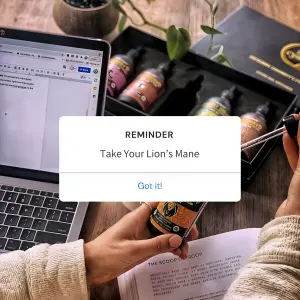
AI Edit Master Prompt
Using the attached image as the layout reference: keep the notification card exactly as positioned, sized and styled — centred, white, unbranded, with the label above the message and the blue button below. Replace the scene with {YOUR SCENE} and the product with {YOUR PRODUCT}, held in frame. Set the small label to "{ALERT TYPE}", the main line to "{YOUR MESSAGE}", and the button to "{BUTTON TEXT}".Reference 2
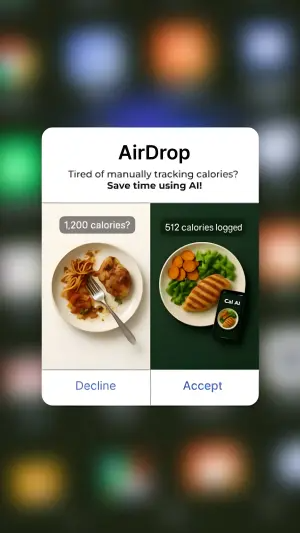
AI Edit Master Prompt
Using the attached image as the layout reference: keep the AirDrop card exactly as positioned, sized and styled — centred over a heavily blurred phone home screen, white, unbranded, with the split image inside and the Decline/Accept row at the bottom. Replace the left panel with {THE OLD WAY} labelled "{OLD LABEL}", and the right panel with {THE NEW WAY} labelled "{NEW LABEL}", with {YOUR PRODUCT} visible in the right panel. Set the card headline to "{THE PROBLEM}" and the bold line beneath it to "{THE FIX}".Reference 3
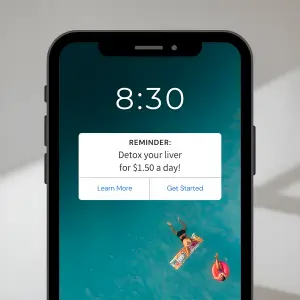
AI Edit Master Prompt
Using the attached image as the layout reference: keep the phone mockup exactly as positioned, sized and styled — black handset on a plain light background, soft shadow, with the white notification banner centred on the lock screen and the two-button row at the bottom. Replace the wallpaper with {YOUR WALLPAPER}. Set the clock to "{TIME}", the small label to "{ALERT TYPE}", the main line to "{YOUR MESSAGE}", and the buttons to "{SOFT BUTTON}" and "{ACTION BUTTON}".Reference 4
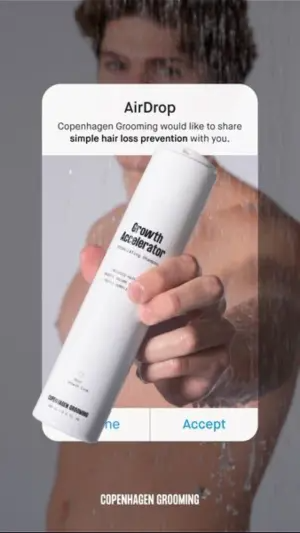
AI Edit Master Prompt
Using the attached image as the layout reference: keep the AirDrop card exactly as positioned, sized and styled — centred, white, unbranded, with the title above the message and the Decline/Accept row at the bottom, and the product breaking out past the edges of the card. Replace the background with {YOUR SCENE}, slightly blurred, and the product with {YOUR PRODUCT} held out toward the camera. Set the message to "{WHO'S SENDING} would like to share {WHAT} with you." Place "{YOUR BRAND}" in small white caps at the bottom of the image.